Showing posts sorted by relevance for query traffic. Sort by date Show all posts

Increase your blog traffic with Twitter

Note from the blog owner: This article is partially outdated; Twitter Feed was shut down on October 2016. 

One proven way to redirect traffic to your new posts is “to tweet” them.  In other words, if you write a new blog entry, make sure you also create a new tweet for it. This simple procedure will give some traffic on the fly to your new posts.

“Tweeting” your posts has several benefits, but I would like to enunciate two of them:
  • It allows you to have visitors even before the major search engines (ex. Google, Yahoo, Bing) have indexed (and crawled) your newly added post.
  • If your post content is good and sticky, you will gain flowers on Twitter, which means the possibility to increase your traffic in an exponential way, due to the viral nature of this micro-blogging platform.
All this sounds good, but you should agree with me that adding tweets by hand is boring. If you are a lazy blogger like me, you should find a way to create the tweets automatically, after a new post entry has been published.

I am sure there are several ways to do this, but here is my own:
  1. Create a new Twitter account for your Blog. Notice the blue pigeon to the right of this page: it links to my Twitter account: http://twitter.com/yanniel_alvarez. This is the account I use for tweeting my blog posts. Take a look and notice how all my posts have been tweeted.
  2. Create a new account in Twitter Feed. This is a really cool system that allows you to “feed your blog to Twitter”.
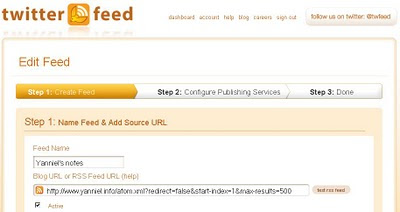
  3. Configure Twitter Feed to redirect your blog post entries to Twitter. Just follow the given instructions, which are very straightforward. The most important things you need to remember are authenticating to your Twitter account, providing your Blog’s feed URL and setting the update frequency of your tweets. [1]
The following snapshot shows how I configured the feed for my Blogger Blog (www.yanniel.info). In your case, it might be slightly different depending on the blogging platform you are using.

Twitter Feed Settings

Once this is done, you don’t have to worry about updating your Twitter account; instead, the tweets are created transparently every time you add a new post.

Note:
[1]: The update frequency can be found under Advanced Settings (Twitter Feed). By default the update frequency is 30 minutes.

How to implement a tag cloud. Learn by example

A tag cloud [1] is a list of terms in which each item has a corresponding weight. The weight represents the importance or popularity of each term.

Tag clouds usually have a visual representation, and the weight can be translated into a different font size, color, style, text orientation and others. Changing the appearance of each tag in the cloud allows the readers to perform a quick scan and detect the most ranked terms in the cloud.

One final consideration is that tags are generally linked to some related content. This can be achieved for example, by means of a hypertext link (...a href=...) anchored to the affine content.

There are several algorithms to implement a tag cloud; however, right now I'm going to use a fairly simple one: it just changes the font size of the tag depending on the number of occurrences per tag. The general formula (taken from Wikipedia and adjusted by me) is:

Si = |Fmax*(Ti - Tmin)/ (Tmax - Tmin)|

for |Fmax*(Ti - Tmin)/ (Tmax - Tmin)| > 90%;

else Si =90%.

Where:
  • i: is an index ranging from 1 to the total number of tags in the cloud.
  • Si: is the display font size of tag i. You need to calculate Si for each tag in the cloud.
  • Fmax: is the maximum font size value to display. This value is chosen by the user.
  • Ti: is the number of occurrences of tag i.
  • Tmin: is the minimum of all Ti values.
  • Tmax: is the maximum of all Ti values.
Too difficult to understand? Patience, you'll get there:

Consider the following list of twenty tags. The number of occurrences is shown inside red square brackets "[...]":

linda evangelista [9]
toaster [12]
brad richards [7]
max talbot [13]
fireworks [10]
library of congress [12]
bohemian grove [15]
declaration of independence [2]
17 day diet [16]
independence day [10]
white sox [5]
blaise pascal [4]
ewan mcgregor [10]
kate moss [6]
princess diana [10]
traffic [1]
janet jackson [11]
canada day [8]
scott pilgrim vs. the world [10]
paul newman [18]

For the list of tags above, the corresponding Ti values are: T1=9; T2=12; T3=7; T4=13; T5=10; T6=12; T7=15; T8=2; T9=16; T10=10; T11=5; T12=4; T13=10; T14=6; T15=10; T16=1; T17=11; T18=8; T19=10; T20=18.

Now, it's easy to see that Tmax=T20=18 and Tmin=T16=1. Finally, let's set Fmax=300% [2] and let's calculate each Si:

S1 = |300% * (9 -1) /(18-1)| = 141.17% = 141%

S2 = |300% * (12 -1) /(18-1)| = 194.11% = 194%

S3 = |300% * (7 -1) /(18-1)| = 105.88% = 106%

S4 = |300% * (13 -1) /(18-1)| = 211.76% = 212%

S5 = |300% * (10 -1) /(18-1)| = 158.82% = 159%

S6 = |300% * (12 -1) /(18-1)| = 194.11% = 194%

S7 = |300% * (15 -1) /(18-1)| = 247.05% = 247%

S8 = |300% * (2 -1) /(18-1)| = 17.64% = 18%;
as S8 = 18% < 90%, then S8 = 90%.

S9 = |300% * (16 -1) /(18-1)| = 264.70% = 265%

S10 = |300% * (10 -1) /(18-1)| = 158.82% = 159%

S11 = |300% * (5 -1) /(18-1)| = 70.58% = 71%;
as S11 = 71% < 90%, then S11 = 90%.

S12 = |300% * (4 -1) /(18-1)| = 52.94% = 53%;
as S12 = 53% < 90%, then S12 = 90%.

S13 = |300% * (10 -1) /(18-1)| = 158.82% = 159%

S14 = |300% * (6 -1) /(18-1)| = 88.23% = 88%;
as S14 = 88% < 90%, then S14 = 90%.

S15 = |300% * (10 -1) /(18-1)| = 158.82% = 159%

S16 = |300% * (1 -1) /(18-1)| = 0% = 0%;
as S16 = 0% < 90%, then S16 = 90%.

S17 = |300% * (11 -1) /(18-1)| = 176.47% = 176%

S18 = |300% * (8 -1) /(18-1)| = 123.52% = 124%

S19 = |300% * (10 -1) /(18-1)| = 158.82% = 159%

S20 = |300% * (18 -1) /(18-1)| = 300% = 300%

Using the information above we can generate HTML code like this (the line feeds were added just for readability purposes):

<a href="http://www.yanniel.info/search?q=linda+evangelista" rel="tag" style="font-size: 141%;">linda evangelista</a>

<a href="http://www.yanniel.info/search?q=toaster" rel="tag" style="font-size: 194%;">toaster</a>

<a href="http://www.yanniel.info/search?q=brad+richards" rel="tag" style="font-size: 106%;">brad richards</a>

<a href="http://www.yanniel.info/search?q=max+talbot" rel="tag" style="font-size: 212%;">max talbot</a>

<a href="http://www.yanniel.info/search?q=fireworks" rel="tag" style="font-size: 159%;">fireworks</a>

<a href="http://www.yanniel.info/search?q=library+of+congress" rel="tag" style="font-size: 194%;">library of congress</a>

<a href="http://www.yanniel.info/search?q=bohemian+grove" rel="tag" style="font-size: 247%;">bohemian grove</a>

<a href="http://www.yanniel.info/search?q=declaration+of+independence" rel="tag" style="font-size: 90%;">declaration of independence</a>

<a href="http://www.yanniel.info/search?q=17+day+diet" rel="tag" style="font-size: 265%;">17 day diet</a>

<a href="http://www.yanniel.info/search?q=independence+day" rel="tag" style="font-size: 159%;">independence day</a>

<a href="http://www.yanniel.info/search?q=white+sox" rel="tag" style="font-size: 90%;">white sox</a>

<a href="http://www.yanniel.info/search?q=blaise+pascal" rel="tag" style="font-size: 90%;">blaise pascal</a>

<a href="http://www.yanniel.info/search?q=ewan+mcgregor" rel="tag" style="font-size: 159%;">ewan mcgregor</a>

<a href="http://www.yanniel.info/search?q=kate+moss" rel="tag" style="font-size: 90%;">kate moss</a>

<a href="http://www.yanniel.info/search?q=princess+diana" rel="tag" style="font-size: 159%;">princess diana</a>

<a href="http://www.yanniel.info/search?q=traffic" rel="tag" style="font-size: 90%;">traffic</a>

<a href="http://www.yanniel.info/search?q=janet+jackson" rel="tag" style="font-size: 176%;">janet jackson</a>

<a href="http://www.yanniel.info/search?q=canada+day" rel="tag" style="font-size: 124%;">canada day</a>

<a href="http://www.yanniel.info/search?q=scott+pilgrim+vs.+the+world" rel="tag" style="font-size: 159%;">scott pilgrim vs. the world</a>

<a href="http://www.yanniel.info/search?q=paul+newman" rel="tag" style="font-size: 300%;">paul newman</a>

That HTML code renders a tag cloud like the one below:


Notice that if you click on a tag it will search any related content withing my blog. Try it!

Notes:
[1] A tag cloud is also referred as a word cloud or weighted list. In this context, tag is a synonym of term; sometimes even a synonym of word. Nevertheless, I don't like the latest assumption, because the practical experience shows that a tag can be formed using two words or more.
[2] You can chose whatever value you want for this parameter. However, depending on what you set, the appearance of the tags in the cloud might vary.